Support
Can’t find your answer here? Message us on WhatsApp (0902 206 3538), chat only, no calls, or email [email protected] and we’ll get back to you within two working days. Please don’t send your PIN, password or full card number. We’ll never ask for them.
Getting started
How does Kobuddy get my transactions?
Your bank emails you an alert for every debit and credit. You set up a Gmail filter that forwards just those alerts to your private Kobuddy address, and Kobuddy turns each one into a transaction. On iPhone, it can also read your bank’s SMS alerts once you set it up (see below). In the Android app, it can read your bank’s SMS alerts, and OPay and PalmPay’s app notifications (see below).
How do I set up forwarding in Gmail?
The app walks you through it under Settings → Set up Kobuddy in Gmail, with buttons to copy everything you need. In short:
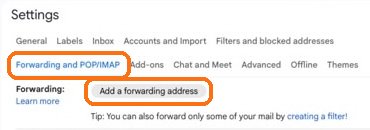
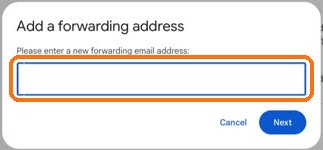
- In Gmail’s settings, open Forwarding and POP/IMAP and add your Kobuddy address.
- Approve it. Kobuddy shows you Gmail’s confirmation link or code in the app.
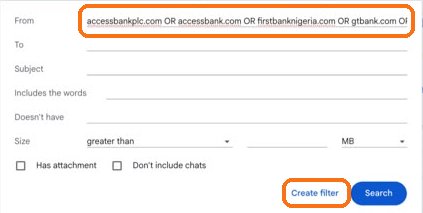
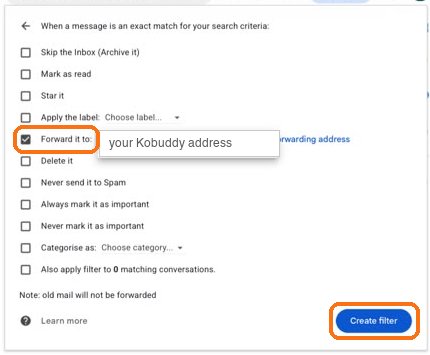
- Create a filter for your banks’ alert senders and choose “Forward it to” your Kobuddy address. The app gives you the exact filter to paste.
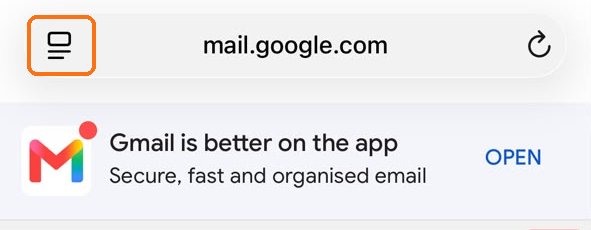
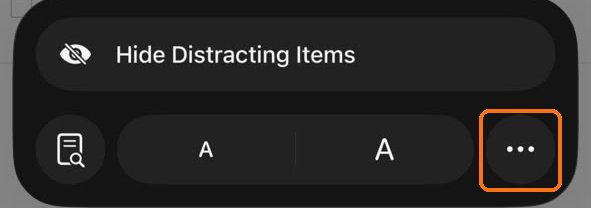
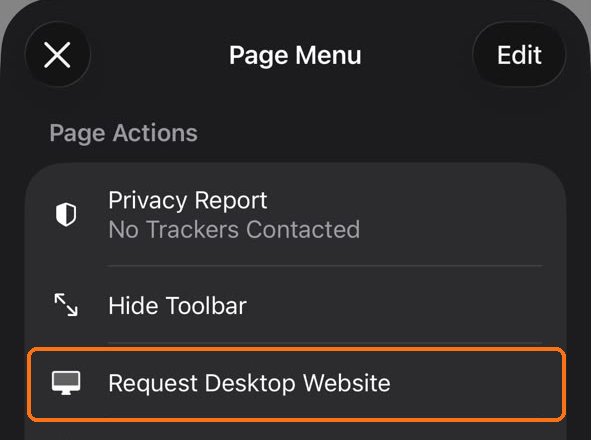
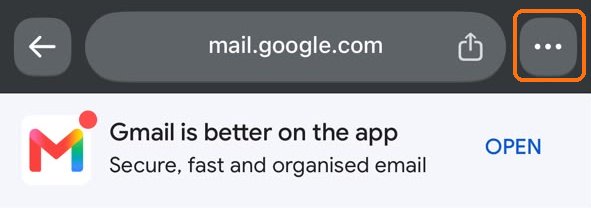
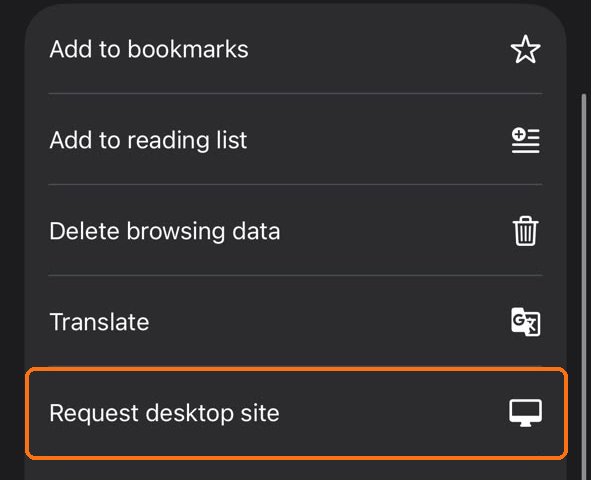
Gmail’s phone app can’t change these settings, so use a computer, or open Gmail in your phone’s browser and switch to the desktop site. In Safari, tap the icon at the left of the address bar, then ••• → Request Desktop Website. In Chrome, tap the menu → Request desktop site.
Show me
Switch to the desktop site
Add your Kobuddy address
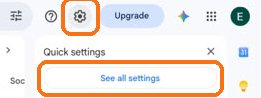
Create the filter
Will Kobuddy see my other emails?
No. The filter forwards only emails from your banks’ alert addresses. Don’t turn on “Forward a copy of incoming mail” in Gmail, because that would forward everything.
Which banks are supported?
GTBank, Access Bank, First Bank, Kuda, Moniepoint, OPay, PalmPay, Polaris Bank, Providus Bank, Stanbic IBTC, Sterling Bank, UBA, Union Bank, Wema Bank (ALAT) and Zenith Bank email alerts today. You can also share receipts from your bank’s app, and on Android Kobuddy can read OPay and PalmPay’s app notifications (see below). More are coming. If yours isn’t listed, tell us which bank it is.
Can Kobuddy read my bank SMS alerts on iPhone?
Yes, if your bank texts you alerts. A Shortcuts automation sends each bank SMS to Kobuddy as it arrives, even when your phone is locked. Setting it up takes about three minutes, once:
- In the app, go to Settings → SMS and receipts on iPhone and tap Make and copy my link.
- Add the Kobuddy SMS shortcut and paste your link when it asks.
- In Shortcuts, create an automation for messages that contain Bal, set to run immediately, that runs the Kobuddy SMS shortcut.
- The first time it runs, your iPhone asks to let it connect to Kobuddy. Choose Always Allow.
It works when your phone has a connection. If your bank also emails alerts, keep Gmail forwarding on as a backup.
Kobuddy ignores any message that isn’t from a bank. If your bank also emails you the same alert, it’s only counted once. Keep your link private. If you think someone else has it, make a new one on the same screen and the old one stops working.
On Android, the Kobuddy app reads your bank SMS itself, with no shortcut to set up (see below).
Can Kobuddy read my bank SMS alerts on Android?
Yes, in the Kobuddy app from Google Play. Each bank alert is recorded as it arrives, even when Kobuddy is closed, and the bank alerts already on your phone from the last 90 days are added when you turn it on. To turn it on:
- In the app, go to Settings → Bank SMS (Android) and tap Agree and continue.
- When Android asks, allow Kobuddy to read SMS.
Your phone checks who each SMS is from. Only messages from banks are sent to Kobuddy; your other messages never leave your phone. If your bank also emails you the same alert, it’s only counted once. To stop, tap Stop reading bank SMS on the same screen. It works on Android Go phones too.
Can Kobuddy read my bank app notifications on Android?
Yes, for OPay and PalmPay, in the Kobuddy app from Google Play. When a payment notification from your bank’s app appears, Kobuddy records it, even when Kobuddy is closed. To turn it on:
- In the app, go to Settings → Bank app notifications and tap Agree and continue.
- Tap Open notification access, find Kobuddy and allow it.
Your phone checks which app each notification comes from. Only notifications from bank apps are sent to Kobuddy; your messages and other apps’ notifications never leave your phone. To stop, tap Stop reading notifications on the same screen.
Some lower-cost phones (Android Go edition) don’t let any app read notifications. On those, share receipts from your bank’s app instead (see below).
Can Kobuddy record my OPay transactions?
Yes. OPay emails you when you send or pay money, and Kobuddy reads those emails like any bank’s alerts, with who you paid. For money coming in, and for your remark, which OPay’s emails leave out: in the Android app, Kobuddy reads OPay’s notifications as they arrive (see above), or share a receipt from the OPay app and Kobuddy records it, with the amount, who you paid or who paid you, and your remark. On iPhone, set it up once:
- In the app, go to Settings → SMS and receipts on iPhone and copy your link. If you don’t have one yet, tap Make and copy my link.
- Add the Kobuddy receipt shortcut and paste your link when it asks.
Then, after a payment, open the transaction in OPay, tap Share (image or PDF), and choose Kobuddy receipt. A notification tells you what was recorded, for example “Recorded ₦500 to Ada Eze, 6 Oct 1:15 pm”. Each transaction is filed at the time on its receipt, so an older receipt appears under its own date.
Sharing the same receipt again won’t record it twice, and a receipt for something Kobuddy already has from your bank’s alert is matched to it. Transfers and airtime are read today, and other OPay receipts are being added.
Receipts from the Access Bank, First Bank, GTBank, PalmPay, Polaris Bank, Providus Bank, UBA and ALAT (Wema) apps can be shared the same way, which helps when an alert didn’t arrive or cut your remark short.
On Android, there’s nothing to set up: in the bank’s app, open a transaction, tap Share and choose Kobuddy. Kobuddy shows what it recorded.
I use Yahoo or Outlook, not Gmail.
The in-app guide is written for Gmail. Other providers can forward emails with a rule too. Email us and we’ll help you set it up.
Using Kobuddy
A transaction is missing or wrong.
Check that the alert reached your Gmail inbox and that your filter includes that bank. If it did and Kobuddy still missed it, or read it wrongly, email us the date, the amount and the bank. Please don’t forward the alert itself unless we ask.
How do categories work?
Kobuddy files what it recognises automatically. Anything it isn’t sure about waits in Review. When you choose a category you can ask Kobuddy to always file that person or business the same way. You can also add a word like “food” or “#transport” to your transfer remark, and Kobuddy files it for you.
Where are my bank charges?
By default, transfer fees, VAT and stamp duty show quietly under the transaction they were charged on and aren’t counted in your spending. Turn on “Show bank charges” in Settings to list and count them.
Can I add cash spending?
Yes. Tap Cash on the Home screen, enter the amount and pick a category. If it’s something you pay for most weekdays, like bus fare or lunch at work, turn on Repeat every weekday and Kobuddy will add it for you from then on.
What are routines?
A routine is cash you spend on a schedule, like transport or lunch at work. Set it up once in Settings → Routines with the amount, the days and a category, and Kobuddy adds it at 7:00 pm on each of those days. Roughly right is fine. Skipped a day? Just delete that day’s entry and it won’t come back. You can pause a routine for holidays or leave, or stop it at any time.
Why doesn’t my cash spending add to my total after I withdraw cash?
Because it’s the same money. When you withdraw cash, Kobuddy counts it as spending under Cash withdrawals. As you add cash spending, it’s taken out of that amount and moved into its real category, so nothing is counted twice.
For example, you withdraw ₦10,000, then add ₦2,000 for lunch, and your bus fare routine adds ₦7,500 over the week. Your Stats show ₦2,000 Food, ₦7,500 Transport and ₦500 still under Cash withdrawals. That’s ₦10,000 in total, the money that actually left your bank.
Whatever is still under Cash withdrawals is cash you haven’t said what you spent on. Cash spending beyond what you withdrew (say, cash someone gave you) is added to your total as normal. Withdrawals and cash spending are matched within the same week or month you’re viewing.
I got cash from a POS agent. How do I tell Kobuddy?
ATM withdrawals are recognised automatically. If you transfer money to an agent for cash, add “cash” or “withdrawal” to your transfer remark and Kobuddy files it under Cash withdrawals for you.
Otherwise, open the transaction and choose Cash withdrawals as its category. Leave “remember” on and Kobuddy will file payments to that agent the same way next time.
Your account and data
How do I delete my account?
In the app, go to Settings → Delete account. Your account is paused straight away and deleted 30 days later; sign in before then to keep it. See Delete your account for the details.
What happens to my data?
Original alerts are deleted after 90 days; your transactions stay until you delete them or your account. We never sell your data. The privacy policy has the details.
I think someone else knows my Kobuddy address.
Email us from the address on your account and we’ll give you a new one. You’ll then update your Gmail forwarding to the new address.